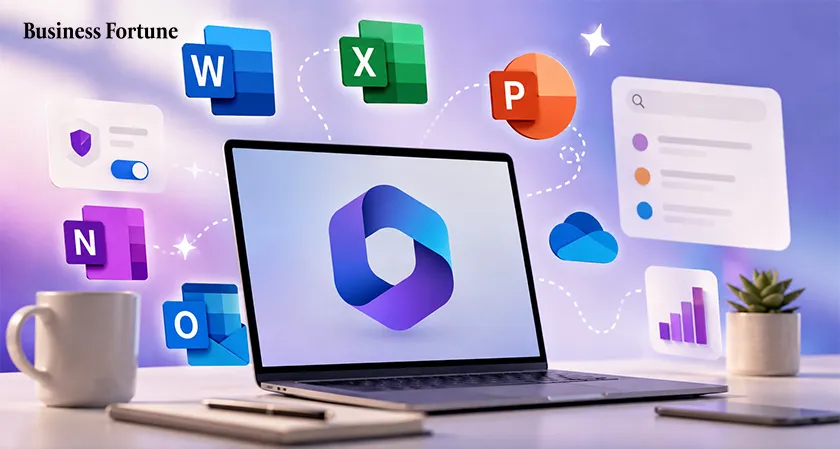
Uncover Best Microsoft 365 features and hidden productivity secrets
When you think of Microsoft 365, you may think of the productivity suite; Word, Excel, PowerPoint, Outlook. It’s all there, but the most useful Microsoft 365 features are frequently tucked away.
Microsoft 365, your business has it; your employees want the scheduling apps, survey tools, project management platforms, video editors and task managers in that software that they’re asking about.
The issue is that many businesses forget they have these tools in their existing software because Microsoft 365 is like a toolbox; you utilize the hammer and the screwdriver more often than the other twenty items
Some of these neglected tools are surprisingly powerful and can considerably increase staff productivity.
If your business utilizes Microsoft 365 tools for productivity and you’ve begun to wonder why work seems to entail so many various apps, tabs and subscriptions, it might be helpful to take a closer look at your toolbox.
Microsoft Bookings
Bookings enables you to establish a conversation free scheduling system in which customers may request appointments, which are then synced to Outlook calendars
The brilliance of this relatively Microsoft 365 hidden features is that it makes scheduling meetings as simple as sharing a link. Your clients will appreciate not having to discuss availability; they’ll just choose a date that works.
Microsoft Planner
Project management software may sound like something that necessitates a separate, full time company to handle, but Planner is Microsoft’s response to those who want to free up their teams while still retaining control of their marketing, onboarding, IT and other regular initiatives.
The most accessible way to describe Planner is that it enables teams to design their own to do lists with due dates and responsibilities.
This sounds simple, but it’s an excellent method to keep track of everyone’s responsibilities while ensuring that everyone fulfills their end of the bargain.
Planner’s finest characteristic, in our opinion, is that it doesn’t attempt to do anything more than it needs to. There’s no requirement for it to be a huge, fancy corporate level project planning tool.
If you need someone to design a campaign, add a task. If someone needs to finish it by Friday, add a due date. If someone needs to be reminded, send them a message. Suddenly, “Who was supposed to do that?” is asked less frequently.
Microsoft Forms
Email is a fantastic tool, but it’s not the best database.
Despite this, many companies make the mistake of relying on email as their primary means of storing data.
When someone needs to collect data, an email is sent out, followed by thirty replies. Someone needs to compile the findings into a spreadsheet, double check that everyone answered the same question and so on.
Microsoft Forms is the answer to unwieldy, easily misplaced email surveys. Using this Microsoft 365 feature, you can collect responses and organize them more efficiently.
Microsoft Forms can be utilized for practically any survey, poll, sign up sheet, quiz or other data gathering activity that needs to be completed inside the Microsoft ecosystem.
Microsoft Lists
Let’s say your company has a fantastic Excel spreadsheet. It works exceptionally well until it doesn’t and then it becomes a monstrosity of fifty columns and nonsensical formulas.
Microsoft Lists can assist in streamlining the management of information like assets, vendors, onboarding, help desk requests and project intake.
Microsoft Lists may also be utilized within Teams and SharePoint to organize information. You can think of Lists as a more organized alternative to the spreadsheet.
It accomplishes the same goal, only in a neater, more accessible package. If your company regularly asks, “Where did we put that information?” you may want to consider Lists.
Microsoft Whiteboard
Some ideas are excellent, but they don’t fit on a spreadsheet.
They’re sticky notes full of arrows, boxes, diagrams and drawings that make no sense to anyone who wasn’t there when they were created.
Microsoft Whiteboard is a collaborative workspace that enables teams to share ideas, brainstorm, design processes and organize meetings. Whiteboard is ideal for hybrid teams who prefer to collaborate digitally rather than in person or who want to do a combination of both.
Microsoft Loop
There’s nothing more frustrating in the workplace than the same content being duplicated in various locations. Someone sends out the project update as an email, while another stores it in Teams. The notes are in a Word file and the meeting invitation contains a different variant.
Loop is all about collaboration and synchronizing content across several locations. With Loop components, anyone can share information directly within Teams and Outlook while still having access to the same material.
Microsoft is rolling out numerous exciting new innovations for Loop in 2026, including page overviews, rewritten documents and even Copilot. Loop is worth a look if your team wants to synchronize information that previously existed in numerous, disconnected locations.
Clipchamp
Microsoft 365 productivity features have seen an explosion of video usage in recent years, from training films to recruitment material, product demos, internal announcements and customer onboarding. Unfortunately, not everyone possesses the technical expertise or willingness to edit videos.
Microsoft Clipchamp is a fantastic tool for generating fundamental business videos without the hassle of learning sophisticated editing software
Microsoft 365’s hidden productivity tip is that it’s fast not just easier, faster. When your team requires a simple five minute training film, there’s no need to wait for the appropriate person to edit it.
Not every video requires to be Oscar worthy.
Microsoft To Do
To-do lists. Productivity tools. Dashboards.
Microsoft To Do is a fantastic tool that allows you to keep track of your tasks without getting sidetracked by other apps. It works well with Outlook as a task manager or on its own for daily planning and reminders. Microsoft To Do is excellent for persons who lead hectic professional lives, as well as those who have to juggle their own schedules with their coworkers’. It enables you to maintain control of your day without falling for the siren song of a complicated dashboard with 47 colored tabs.
Copilot
You’ve probably heard of Microsoft 365 Copilot by now. The most intriguing aspect of Copilot is that it’s not a separate program. Microsoft 365 Copilot appears to be coming to Word, Excel, PowerPoint, Outlook, Teams and Loop.
Depending on the application, Copilot can assist you in writing emails, scheduling meetings, summarizing information, designing PowerPoint presentations, suggesting Excel formulas and analyzing data. There are various reasons why Copilot is a fantastic Microsoft 365 feature to investigate further.
First and foremost, Copilot delivers some much needed AI assistance within existing Microsoft software. Many of the most helpful Microsoft 365 Copilot Features are essentially intelligent word processing assistants. Second, Copilot is set to grow even more powerful in the coming years. Microsoft’s 2026 release notes for Copilot reveal that the corporation is working on enhancements to Outlook, OneDrive, Excel, Loop and Forms. For example, when sharing specific OneDrive files, recipients may soon be able to see Copilot powered summaries without having to open the document.
However, you should keep in mind that Copilot is a genuine AI assistant rather than simply a chatbot. There are numerous ways in which you may utilize Copilot to boost your everyday productivity.
Microsoft 365 Tips and Tricks 2026: Start With One Problem
Here’s a challenge for your team.
Instead of having a two hour meeting to discuss Microsoft 365, ask your employees one simple question.
“What recurring task is costing us the most time every week?” and write down their answers. The answers may include scheduling meetings, chasing down information, finding documents or creating reports or other regular communications. Your solutions should be to apply the relevant features to each pain point.
This is the beauty of Microsoft 365 Tips and Tricks 2026; instead of a list of cool things to try, you want to hone in on specific solutions for your users.
Also consider your licensing; Microsoft notes that “some Copilot capabilities and experiences are dependent on the type of Copilot license and Microsoft 365 plan.”
Before sharing tips and tricks, ensure that you aren’t promising features that aren’t available to your team’s version of Microsoft 365.
Don't Chase Features - Chase Friction
There can be a temptation with productivity software to chase features, but this is rarely productive.
There's an entire industry designed to sell businesses on tools and applications when a more considered approach at friction points is far more likely to yield useful insights. A company may have dozens of applications and spend the best part of a working day copying information between systems. Instead, asking yourself the following questions is likely to yield more fruitful results:
-
Where do you currently have duplication of effort in your workflows?
-
Where is approval being requested for something that shouldn't need to be?
-
Where are meetings being held that could be replaced by an async update?
-
Where is information being keyed in twice or filed somewhere else?
-
Who always says "I'll send that over later"?
These questions are far more valuable than a generic technology checklist. A further consideration is ongoing re-evaluation of Microsoft 365 adoption; Microsoft will continue to release and update Copilot features and these can appear in the applications at different times meaning a feature you've overlooked can be far more compelling later.
The reality is Microsoft 365 features are most valuable to businesses when they're not the "wow" features and can include something as simple as a booking page that prevents 10 emails or a taskboard that makes clear who is responsible for what. A form that aggregates all information in one place or a shared space where people stop debating over the latest version of a document can also be massively valuable. The same goes for Copilot itself, which fundamentally changes the way you can work in any Microsoft 365 app, but often requires friction reduction to really take off.
Business Fortune points that, before buying the next big application, it's worth considering the features you already have that you aren't leveraging. The next most valuable productivity suite for your business may not be an application at all, but a feature, a click away.
FAQs
What are the best Microsoft 365 features for businesses?
Some of the most valuable Microsoft 365 features not often used by businesses are Microsoft Bookings, Planner, Forms, Lists, Whiteboard, Loop, Clipchamp, To Do and Copilot. What's most compelling will depend on the needs of the business and the licenses available.
Can Microsoft 365 replace other software for businesses?
Microsoft 365 can act as a replacement for other software in some areas, typically where those applications didn't previously exist. Microsoft Bookings, Forms, Planner and Lists are all examples of tools that previously required a separate application, but are now available within Microsoft 365. That said, there are some tools that still provide far more value for certain applications.
What are the most useful productivity features in Microsoft 365?
Planner, To Do, Lists, Loop and Copilot can all be incredibly valuable tools, but it's often the case that a basic utility is used regularly, providing far more value than a comprehensive tool that's rarely used.
Are Microsoft 365 Copilot features available across all plans?
Microsoft 365 Copilot features are not available across all plans. Microsoft 365 Copilot features will depend on the licenses that a business has and it's important for companies to understand which functions they have access to before adopting new tools.
How can a business maximize the value of Microsoft 365?
Understanding the areas of greatest need is key to maximizing the value of Microsoft 365 and it's important to look at existing tools before purchasing additional applications or licenses. There's real value in getting the basics right, before looking at how additional tools can build on that.


.webp)






























Comments